Docker Desktop - Zero to Hero
This guide provides a comprehensive walkthrough for setting up and utilizing Docker Desktop on Windows and macOS systems. It details specific hardware requirements, such as virtualization support and memory needs, alongside step-by-step instructions for graphical and command-line installations.
Beyond setup, the text explains how containers function as isolated environments that share the host’s kernel while remaining portable and efficient. Essential concepts like volume mounting for data persistence and port mapping for network access are highlighted to show how containers interact with the host machine. Users can manage these processes through either a web-based interface or a visual dashboard to monitor performance and logs. Overall, the source serves as a practical roadmap for developers to transition from initial installation to running their first containerized applications.
Listen to the NotebookLM podcast before or while you’re reading this post.
| Speaker | Text |
|---|---|
| Alex | Welcome back to the deep dive. Today we are tackling a piece of software that I feel like um. It just sits on the taskbar of almost every modern developer’s machine and it’s just sort of staring back at them, you know, this little white whale icon, |
| Sam | whale, yeah, everyone |
| Alex | knows the whale. We know it’s important. We know it’s the standard, but if we’re being honest, for a lot of us, it’s still a bit of a black box. |
| Sam | Oh, that’s a very fair assessment. I think it’s one of those tools where you learn what, just enough commands to get your job done, and then you just pray you never have to look under the hood. |
| Alex | Exactly. We were talking about Docker desktop. And the mission for this deep dive is to stop being afraid of the whale. We have a stack of documentation, a really comprehensive technical tutorial, and some architectural notes that are going to help us, uh, dismantle this thing. We aren’t just talking about containers in the abstract, you know, cloud sense. We’re talking about the actual software you install on your laptop, |
| Sam | which is a crucial distinction because understanding how Docker runs on your local machine, on your Mac or your Windows box, that’s actually the key to understanding how modern infrastructure works everywhere. |
| Alex | So let’s start with the absolute basics. When I go to the website and download Docker desktop, what am I actually getting? Because the source material makes a point right up front. It’s not just one program, no. |
| Sam | And that’s the first misconception to clear up. If you are on, say, a Linux server, you might just install the Docker engine, but Docker desktop is a bundle. It’s a suite. You are getting the Docker engine. That’s the heart, the thing that actually runs the containers, but you’re also getting the CLI client, the command line interface. You’re getting Docker Compose V2 for orchestrating multiple containers. And crucially for this discussion. You’re getting a GOI dashboard which acts as the control center. Exactly. It’s the batteries included version. It abstracts away a lot of the really messy configuration that, well, that used to be required to get the stuff running on a non-Lux machine. |
| Alex | OK, before we get into the installation process, which has some interesting quirks. We had to nail down the core concept. The sources keep using this word container, and I feel like people nod along when they hear it, but do they really know how it differs from a virtual machine? Because on the surface, they look the same. I open a window, I run an OS, I run an app. |
| Sam | Visually, they seem identical, but architecturally, worlds apart. And this is probably the most important technical insight to take away from today. Think about a virtual machine, a VM. When you run a VM you are simulating hardware. You are tricking the software into thinking it has its own CPU, its own motherboard, its own RAM sticks. |
| Alex | So if I run 3 VMs, I’m basically simulating 3 separate physical computers inside my 1 laptop. |
| Sam | Precisely. And that means you’re running. 3 full kernels, the core of the operating system, 3 sets of system drivers, 3 full OS installs. It is heavy. It eats your battery and your RAM like crazy, and a container. A container is different. It doesn’t simulate hardware. It shares the host’s kernel. |
| Alex | Shares the kernel. The documentation leans heavily on this phrase. Let’s unpack that for somebody who doesn’t write operating systems for a living. Well, |
| Sam | the kernel is the boss, right? It’s the part of your OS that talks to the metal, the processor, the memory. When you run a container, you aren’t booting a new kernel. You are asking your existing kernel to create a fiercely isolated sandbox, a sandbox, yeah, using Linux features called name spaces and poo groups, and you just run your process inside that. So there’s no boot time, virtually none. It’s milliseconds. Because you aren’t starting an OS, you’re just starting a program that has been tricked into thinking it’s the only thing running on the OS. |
| Alex | I love the analogy the source uses, the difference between a standalone house and an apartment building. |
| Sam | It’s the perfect metaphor. A VM is a standalone house. It has its own foundation, its own plumbing, its own roof. Expensive. takes up a lot of land. A container is an apartment. You share the foundation, the kernel, you share the plumbing, the drivers, but you have your own walls and your own front door. It’s dense, efficient, and lightweight. |
| Alex | That efficiency is why developers love it. But there is one more distinction in the notes that trips people up, images versus containers. The source calls the image a read-only template. |
| Sam | This is the class versus object concept if you’re a programmer, or the recipe versus meal concept if you cook. The image is the frozen blueprint. The blueprint, yeah, it contains the code, the libraries, the settings. Everything is locked in time. You cannot change an image and the container. The container is what happens when you pour water on the. Dehydrated meal. It’s the live writeable instance of that image. You can spin up 10 containers from one image. You can delete them, crash them, mess them up, and the image is fine. The image remains pristine, |
| Alex | which explains why it works on my machine is the slogan here. Everyone is using the exact same frozen image. Exactly. |
| Sam | If I send you my Docker image, I am sending you the exact atomic state of my application. It doesn’t matter if you’re on Windows 11 and I’m on Mac with Sequoia. The environment inside the container is bit for bit identical. |
| Alex | OK, the concept is solid. I’m sold. Let’s get this thing installed. The source material has a checklist here, and it’s a bit more involved than just click next. |
| Sam | It is. The hardware requirements are the first gate. The baseline is 4G of RAM, which, to be honest, if you are doing development work in 2026, you really should have. But the bigger hurdle is usually virtualization support. This is a |
| Alex | BIOS setting right |
| Sam | on Windows. Yes, you often have to dig into your BIOS to enable virtualization technology, and on Mac, it depends entirely on your chip. |
| Alex | The source makes a big deal about the chip architecture Intel versus Apple Silicon. Why does that matter so much? |
| Sam | Because Docker images are compiled for specific CPU architectures. If you have an M3 Mac, which is ARMM based, and you try to run a container built for an old Intel chip, your computer has to do emulation. |
| Alex | Oh wow. |
| Sam | It has to translate the instructions on the fly. It works, but it’s slow. So step one, download the installer that matches your actual chip. |
| Alex | The installation process itself involves dragging the icon, standard stuff. But then there’s the first launch. The source warns that it’s going to ask for privileged access. Do |
| Sam | not click deny here. This is critical. Docker desktop isn’t just a music player. It needs to install networking tools. It needs to configure the system to allow that kernel sharing we talked about. It needs pseudo or admin privileges to set up the plumbing. |
| Alex | Now for Windows users, the notes are very specific about something called WSL 2. Yes, |
| Sam | Windows subsystem for Linux version 2. The |
| Alex | source says the installer will give you a checkbox. Use WSL 2 instead of Hyper-V. And the recommendation is emphatically to check that box. Why |
| Sam | this is a fascinating piece of engineering. Historically, running Docker on Windows was clunky because Windows isn’t Linux. Docker is native to Linux, so early versions use Hyper-V to run a heavy traditional VM in the background. It worked, but it was really resource intensive, and |
| Alex | WSL 2 |
| Sam | changes that completely. WSL 2 integrates a real Linux kernel directly into Windows. It’s lightweight. It’s fast, and it shares files seamlessly. By checking that box, you are telling Docker, Hey, use this native high performance Linux subsystem to run my containers. |
| Alex | So it makes the experience almost indistinguishable from running on a native Linux machine. Pretty much, yeah. And then the inevitable Windows restart. Yes, |
| Sam | because it’s modifying kernel level features, you will almost certainly have to reboot. All right, |
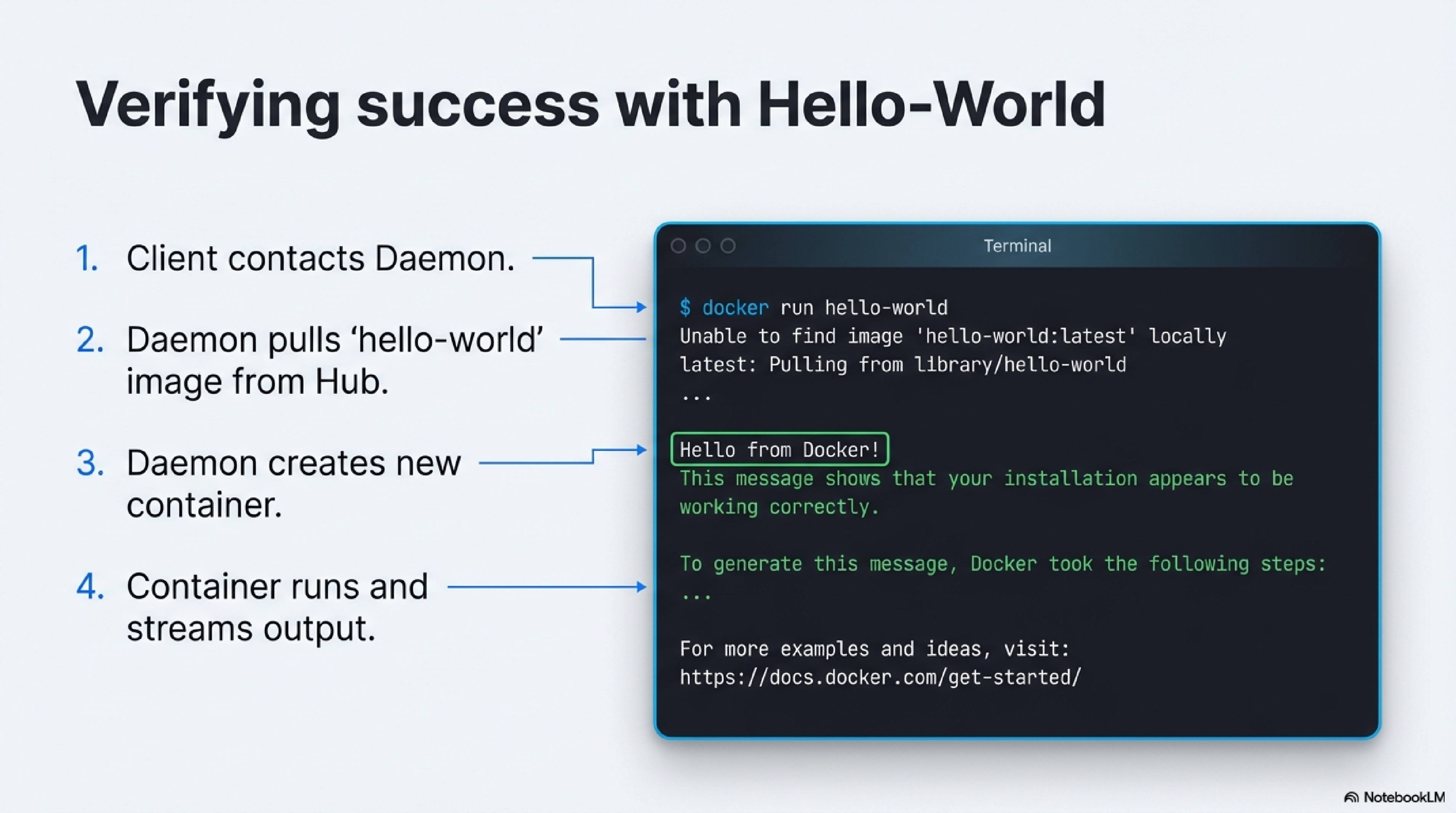
| Alex | we’ve rebooted. The whale icon is stable in the taskbar. How do we confirm we aren’t just looking at a pretty UI that does nothing? The source suggests a specific test command. |
| Sam | The classic hello world. You open your terminal powershell or terminal and you type Docker run, hello |
| Alex | world. And what is actually happening in that split second after I hit enter, I think tracing this path is important to understand |
| Sam | the flow. It’s a chain reaction. Your terminal sends a request to the Docker engine. The engine checks its local cache. Do I have the Hello world |
| Alex | image, which on a fresh install it won’t, right? |
| Sam | So it reaches out to the internet, to Docker Hub, which is like the app store for images, downloads the layers, extracts them, creates a new container process, runs the script inside it, and pipes the output back to your screen. Hello |
| Alex | from Docker. It’s satisfyingly simple. But it proves that the internet connection works, the virtualization works, and the engine is running. It confirms the whole pipeline is open. |
| Sam | But now we hit a problem. You said earlier that containers are isolated sandboxes. They are ephemeral. So if I’m running a database in a container and I kill the container, Does my data disappear? |
| Alex | If you rely on the default settings, yes, the file system inside a container is temporary. It lives and dies with the container process. That |
| Sam | sounds incredibly dangerous. It would |
| Alex | be if we didn’t have volumes. This is the next big concept in our deep dive. The source calls this connecting the box to the world. |
| Sam | Let’s talk about bind mounts. The source describes them as a way to map folders. |
| Alex | Think of a bind mount as poking a hole in the side of the container. You were telling Docker, take this specific folder on my laptop, say my project folder where I keep my code. And map it to this specific folder inside the container. |
| Sam | So it’s a wormhole. That is the perfect analogy. If you save a file in that folder on your laptop, it instantly appears inside the container. If the container writes a log file to that folder, it appears on your laptop. |
| Alex | And crucially, if I delete the container, |
| Sam | the folder on your laptop is untouched. Your data is safe. This is how you do development. You edit code on your machine in your favorite editor. And the container running the server sees the changes instantly. |
| Alex | The command for this seems to be the Audi V flag, right? |
| Sam | vhost path.container path. It’s always host on the left, container on the right. OK, |
| Alex | so that handles files. But what about the network? If I’m running a web server inside a container, it’s listening on port 80. But if I type localhost. 80 in my browser, Nothing happens |
| Sam | because the container’s network is private. It’s locked down. It’s a security feature. You have to explicitly open the door. This is port mapping. The G slag, |
| Alex | yes, |
| Sam | and just like volumes, it’s host.container. So if you run IB 8080.80, you are telling Docker, Listen on Port 8080 on my laptop. If any traffic hits it, tunnel it directly to Port 80 inside the container. |
| Alex | So I browse to local host punt 8000, and Docker acts as a traffic. |
| Sam | Exactly. It forwards the request, the container responds, and Docker hands the response back to your browser. |
| Alex | This explains why you often see these random port numbers in development tutorials like 3000 or 8080. You’re just finding an open slot on your host machine to map to the standard port inside the container, and |
| Sam | you have to be careful. If you try to map two different containers to port 8080 on your laptop, Docker will yell at you, Address already in use. You can only have one. Thing listening on a host port at a time. |
| Alex | This leads us nicely into the 3 ways to run an app section of the notes. The source distinguishes between these different modes of operation, and I think understanding them clarifies a lot of the workflow. |
| Sam | It’s really about intent. What are you trying to do right now? |
| Alex | The first mode is foreground CLI. |
| Sam | This is interactive. You’re effectively stepping inside the container. You might do this to run a script, debug something, or just explore the file system. When you exit the shell, the container usually stops, |
| Alex | so it’s ephemeral, used for tasks, right? |
| Sam | Get in, do the thing, get out. |
| Alex | The second is remote server connection. This |
| Sam | is fascinating. You run the container in the background detached, but you treat it like a server you would SSH into. You can execute commands against it while it keeps running. It mimics managing a remote Linux box, but it’s just running locally on your RAM. |
| Alex | And the third, which I assume is the most common for web developers, is the Background web server. |
| Sam | This is the bread and butter. You spin up a web server in Jis, Apache node.js. You detach it so it runs in the background. You map the ports, and then you forget about the terminal. You just work in your browser and your code editor. |
| Alex | It becomes infrastructure as a service running on your desktop. |
| Sam | That’s a great way to put it. |
| Alex | Now we’ve been throwing a lot of terminal commands around VPRD. It can get a bit matrix code after a while, but the source makes a point that Docker desktop includes that dashboard we mentioned earlier. It calls this section managing the chaos. |
| Sam | And frankly, even hardcore CLI users end up using the dashboard. It’s just convenient. |
| Alex | What are the killer features there? |
| Sam | Visibility is number 1. When you’re running 5 microservices, a database, and a cache, your terminal history is a mess. The dashboard gives you a clean list. Green light means running, gray means stopped. And |
| Alex | the logs tab. |
| Sam | Oh, the logs tab is a lifesaver. Instead of trying to tail the logs of 5 different containers in 5 different terminal windows, you just click the container in the dashboard and see what it’s saying. |
| Alex | Is the database ready? Did the server crash? It’s all right there. The source also mentions stats, |
| Sam | real-time graphs for CPU and RAM usage. If your laptop fan starts spinning like a jet engine, you can look at the dashboard and see exactly which container is eating 100% of your CPU. |
| Alex | And then there are the shortcut buttons. The open and browser button seems trivial, but it saves you from remembering which port you mapped. |
| Sam | It really does. It just launches local host with the correct port. It’s a quality of life thing that makes the tool feel friendly. |
| Alex | OK, I want to bring all of this together. The source provides a practical example. It’s a single command to run an Engjinx web server. I want to read this out and have you dissect it, effectively decoding the matrix for the listener. This is where syntax becomes language. Let’s do it. The command is. Docker run Docker run PAD 80.80v path. path name my Doshanics. latest. |
| Sam | OK, that’s a dense sentence. Let’s parse it. Gawker run. Hey Docker engine, start a new container detached. This is crucial. It means run this in the background and give me my terminal prompt back immediately. If you forget this, the E jinks. will hijack your terminal window. Port mapping, as we discussed, take traffic from my laptop’s Port 8080 and tunnel it to the container’s web server on port |
| Alex | 80-Vpath path. Volume. |
| Sam | Map my local website files into the containers so Ninjinx can actually serve my content, not just the default Welcome to Ninjinks page. Name my Ninjinks. This is just good hygiene. By default, Docker assigns a random name like boring Wozniak or Sleepy Tesla. Giving it a name like Meinjinks means you can later type Docker Mayan jinks easily without looking up an |
| Alex | ID. And finally, Johnjinks. latest. The |
| Sam | image. It tells Docker to look for the image named Ginks with the tag latest on Docker Hub. |
| Alex | When you break it down like that, it’s actually a very logical syntax. It’s not random. |
| Sam | No, it’s a sentence. Run this in the background, connect these ports, map these files, call it this using this blueprint. Once you know the vocabulary. you can construct almost any environment. |
| Alex | So we’ve gone from downloading a file to running a production grade web server completely isolated from our OS yet fully integrated with our files and browser, |
| Sam | and we did it in seconds. We didn’t have to install in Jings, configure the Echos file, mess with system libraries, or worry about conflicting versions. We just ran a command. |
| Alex | This leads me to the bigger picture. Why does this actually matter? I mean, sure, it’s convenient for me as a developer, but looking at the sources, this feels like it shifts the definition of a computer. |
| Sam | It really does. We are moving toward headless architectures. Think about it. You aren’t installing software with a GUI installer anymore. You are installing a server. You are effectively turning your MacBook or your Surface into a miniature data center. It |
| Alex | democratizes |
| Sam | operations completely. A junior developer can now spin up a Reddis cache, a Postgress database, and a Python backend with 3 commands. 10 years ago, that took a systems administrator 2 days to configure correctly, |
| Alex | and it solves the dependency hell, |
| Sam | right? Because the container carries its own environment. I don’t care what version of Python is installed on your laptop, the container has the version it needs. It separates the application from the infrastructure. |
| Alex | The source has this interesting line at the end. It mentions that containers lack native GUI support. They’re designed to be headless. |
| Sam | Yes, they are designed to be servers, |
| Alex | and it got me thinking. If Docker and containers are becoming the standard for how everything on the back end is built and if more and more desktop tools are moving to the web, are we seeing a convergence in what sense? Well, if the app is just a container running on my machine and the interface is just my web browser pointing at local host. Does the concept of a desktop application die? Does the future of computing just look like a list of ports running on a headless engine? |
| Sam | That is a provocative thought. We are already seeing it. Think about tools like Jupiter notebooks for data science or even some local admin tools. You start them and they pop open a browser tab. The app is the server. The interface is the browser. |
| Alex | It’s a shift from running a program. To hosting a service for yourself. |
| Sam | It is, and Docker desktop is the tool that makes that paradigm accessible to everyone, not just the server admins. It makes the headless world accessible. |
| Alex | That’s a wild time to be computing from a whale icon to a fundamental shift in software architecture. |
| Sam | It’s more than just a tool, it’s a mindset. Well, |
| Alex | I think that is a perfect place to leave it. Next time you see that little whale, remember. That’s carrying a lot of weight for |
| Sam | you, literally and figuratively. |
| Alex | Thanks for guiding us through the deep end today. My pleasure and thank you for listening. We’ll catch you on the next deep dive. |
Resources:
Installing Docker Desktop
Docker Desktop is the easiest way to run containers locally on both macOS and Windows, and the installation is mostly a point-and-click process on each platform. This tutorial walks through prerequisites, installation, and basic verification for both operating systems so you can be ready to run your first container.1
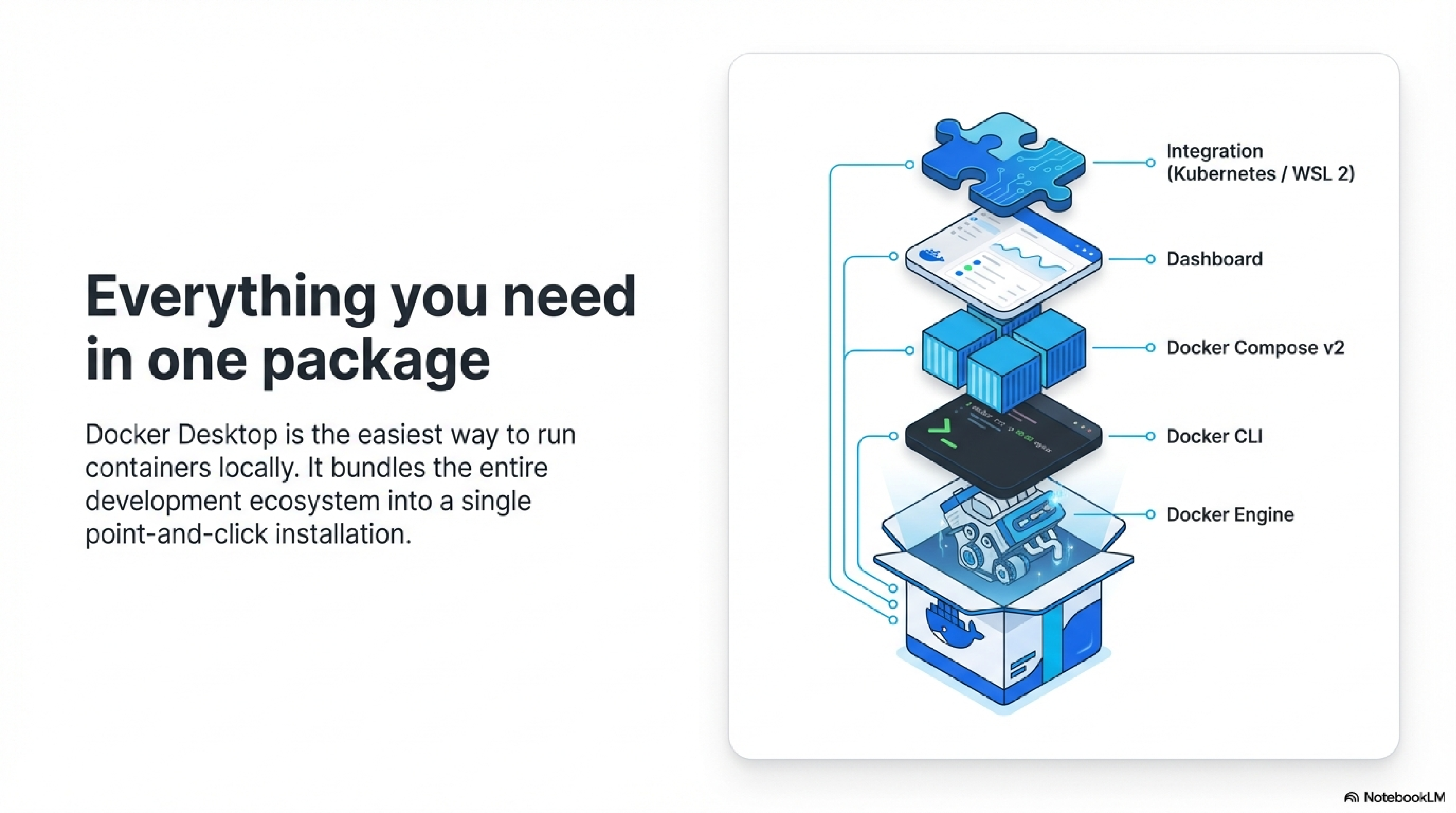
Docker Desktop bundles everything you need for local container development.1
- Docker Engine and Docker CLI to build and run containers.1
- Docker Compose v2 for multi-container apps.1
- A graphical dashboard to manage containers, images, and volumes.1
- Integration with WSL 2 on Windows and native virtualization on macOS.23
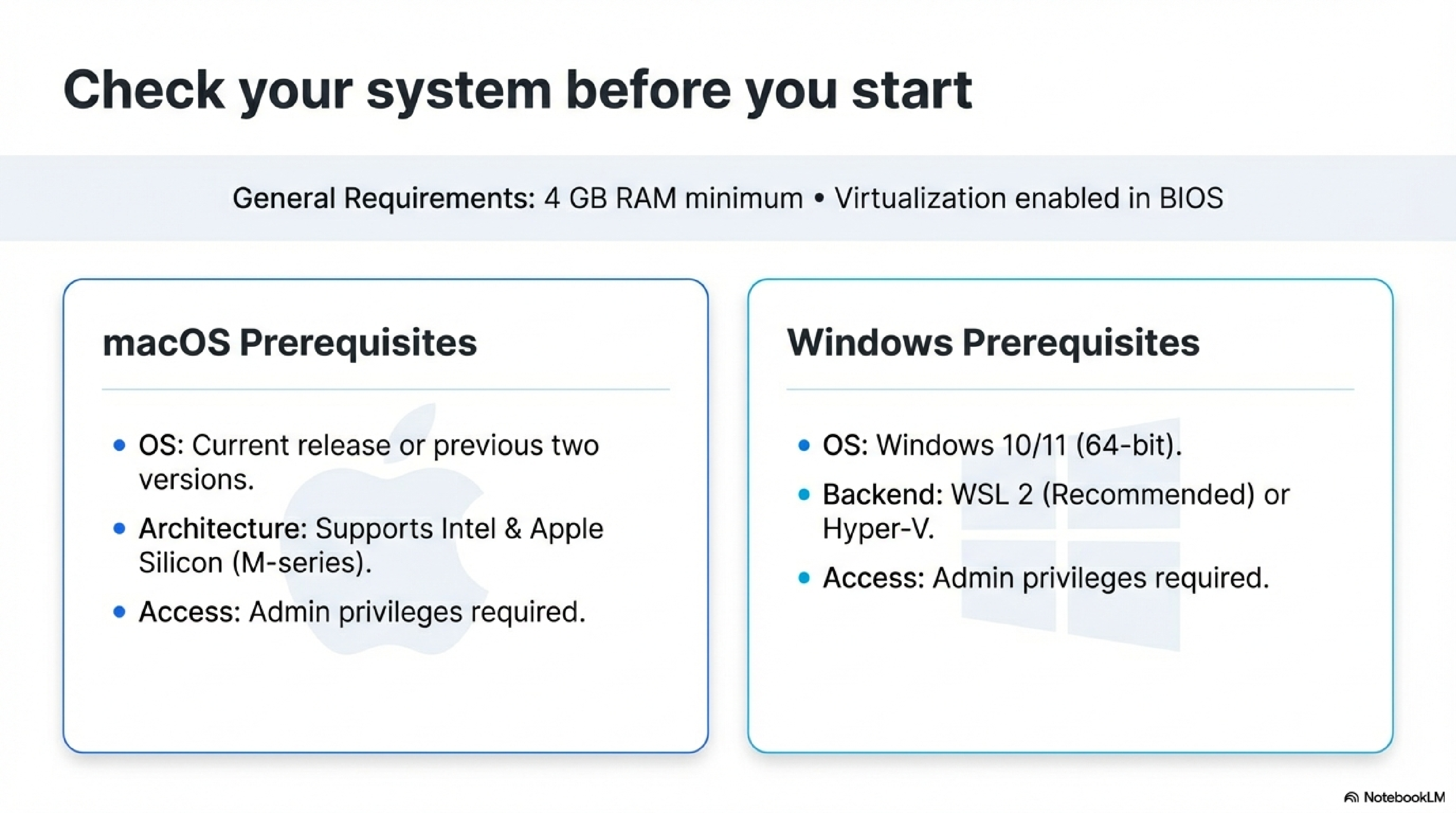
Before installing, confirm that your machine meets the minimum requirements.32
- RAM: At least 4 GB.42
- Virtualization: Enabled in BIOS/firmware (Windows) or supported by your Mac’s CPU (Intel or Apple Silicon).23
For macOS:2
- Supported macOS: current release and previous two major versions.52
- 4 GB RAM or more, admin access to install apps.2
- 64‑bit Windows 10 or 11, latest updates recommended.45
- Hardware virtualization enabled, WSL 2 or Hyper‑V available depending on edition.53
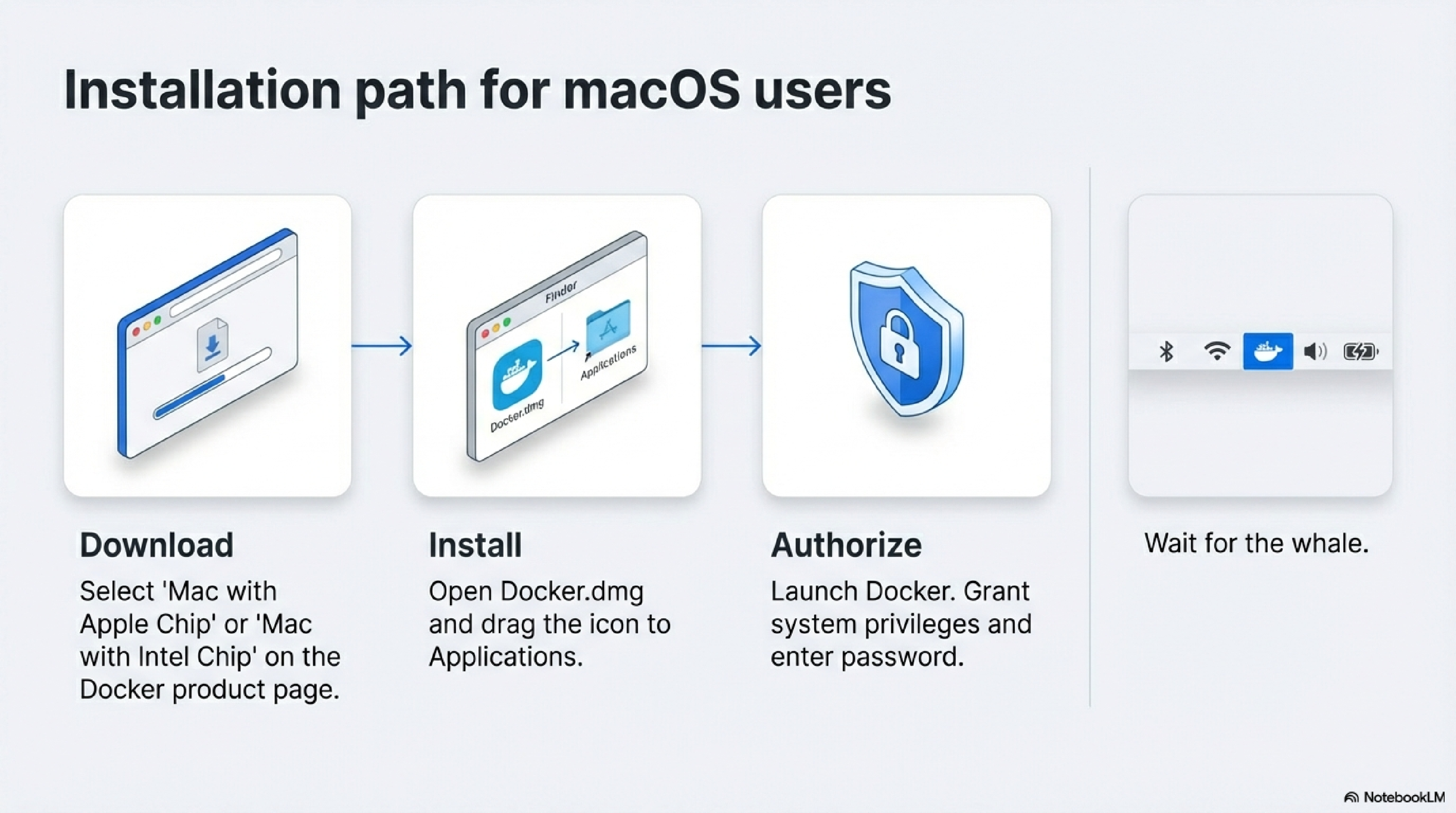
These steps cover the standard GUI installation on Mac.62
- Download Docker Desktop for Mac
- Go to the Docker Desktop https://docs.docker.com/desktop/ product page and choose the Mac download that matches your chip (Apple Silicon or Intel).76
- Save the
Docker.dmgfile to your Downloads folder.6
- Run the installer
- First launch and permissions
- Optional: Install via command line
- Verify your installation
- Wait for the Docker whale icon to appear in the macOS menu bar and show “Docker Desktop is running.”8
- Open Terminal and run:
docker version docker run hello-world - You should see Docker client/server version output and a short message from the
hello-worldcontainer confirming that Docker works correctly.2
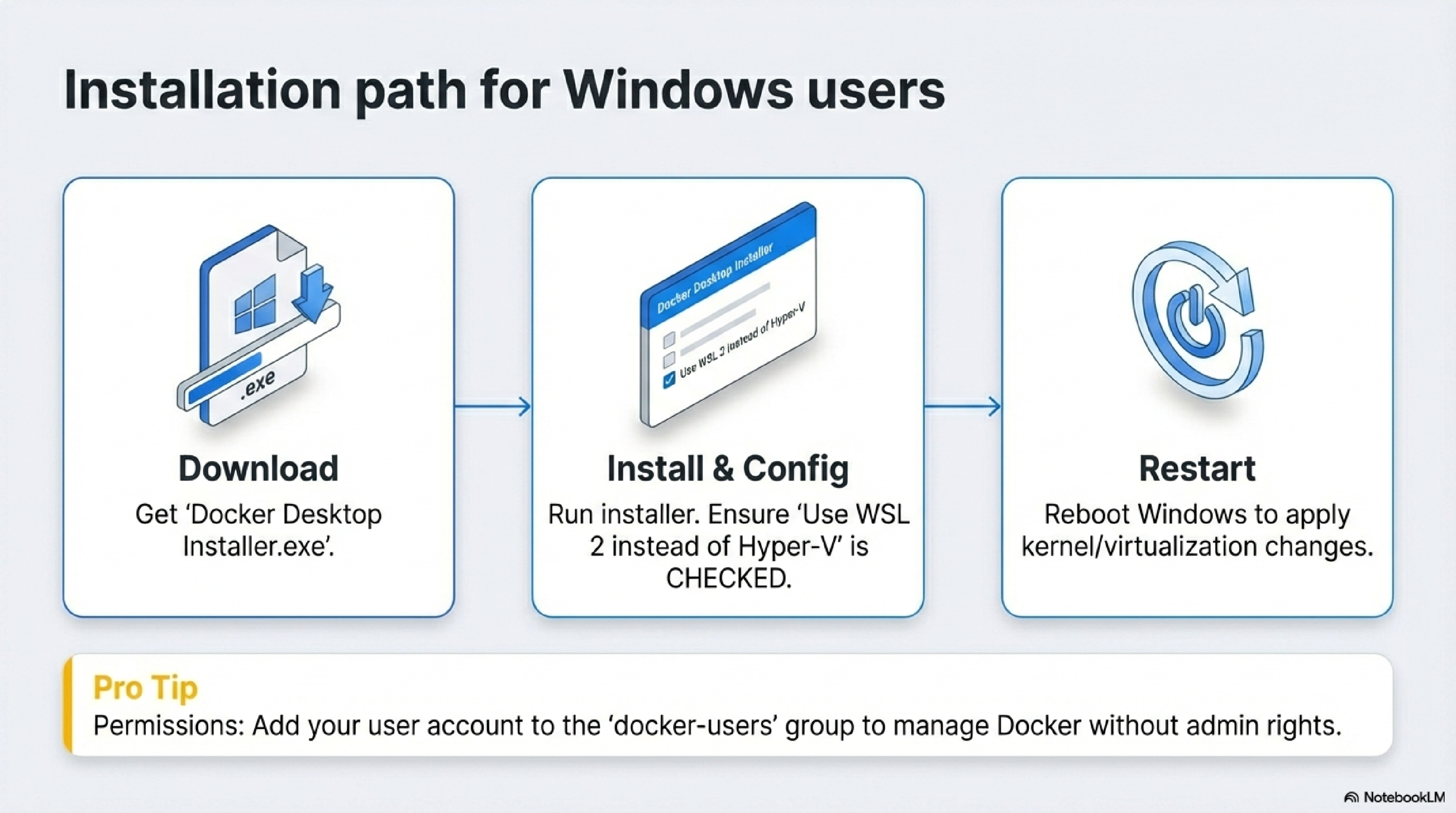
On Windows, Docker Desktop integrates with WSL 2 or Hyper‑V; the interactive installer handles most configuration.34
Download Docker Desktop for Windows
Run the installer
- Double‑click
Docker Desktop Installer.exeto start installation.34 - If prompted, allow the app to make changes (you may need to run as Administrator).94
- In the configuration screen, you can choose options such as “Use WSL 2 instead of Hyper‑V,” enabling WSL 2 integration if supported.93
- Docker Desktop installs by default to
C:\Program Files\Docker\Docker.103
- Double‑click
Command-line installation (optional)
- After downloading the installer, you can script installation, for example from PowerShell:43
"Docker Desktop Installer.exe" install - From PowerShell with explicit start:
Start-Process 'Docker Desktop Installer.exe' -Wait install - From Command Prompt:
start /w "" "Docker Desktop Installer.exe" install - This is useful for automated setups or lab environments.34
- After downloading the installer, you can script installation, for example from PowerShell:43
Post-install configuration
- When installation completes, you may be prompted to restart Windows; accept the restart so kernel and virtualization changes apply.9
- If your admin account differs from your user account, add your user to the
docker-usersgroup so you can manage Docker components:43net localgroup docker-users <user> /add
Verify your installation
- Launch Docker Desktop from the Start menu and wait until the status indicates that Docker is running.93
- Open PowerShell or Command Prompt and run:
docker version docker run hello-world - As on macOS, you should see a confirmation message from the
hello-worldcontainer if everything is configured correctly.34
- Pull a public image:
docker pull nginx - Run a container in the background:
docker run -d -p 8080:80 nginx - Open Docker Desktop’s GUI to inspect running containers, view logs, and stop or remove containers from the dashboard.1
This flow—download, install, verify with hello-world, then run a simple web server—gives readers a complete end‑to‑end path for getting Docker Desktop working on both macOS and Windows.
Docker Containers at a High Level
Docker containers provide lightweight, isolated environments for running applications by packaging code with its dependencies, sharing the host’s OS kernel for efficiency. They connect to the host via filesystem volumes and port mappings, allowing seamless data access and network communication without needing a full virtual machine.16171819
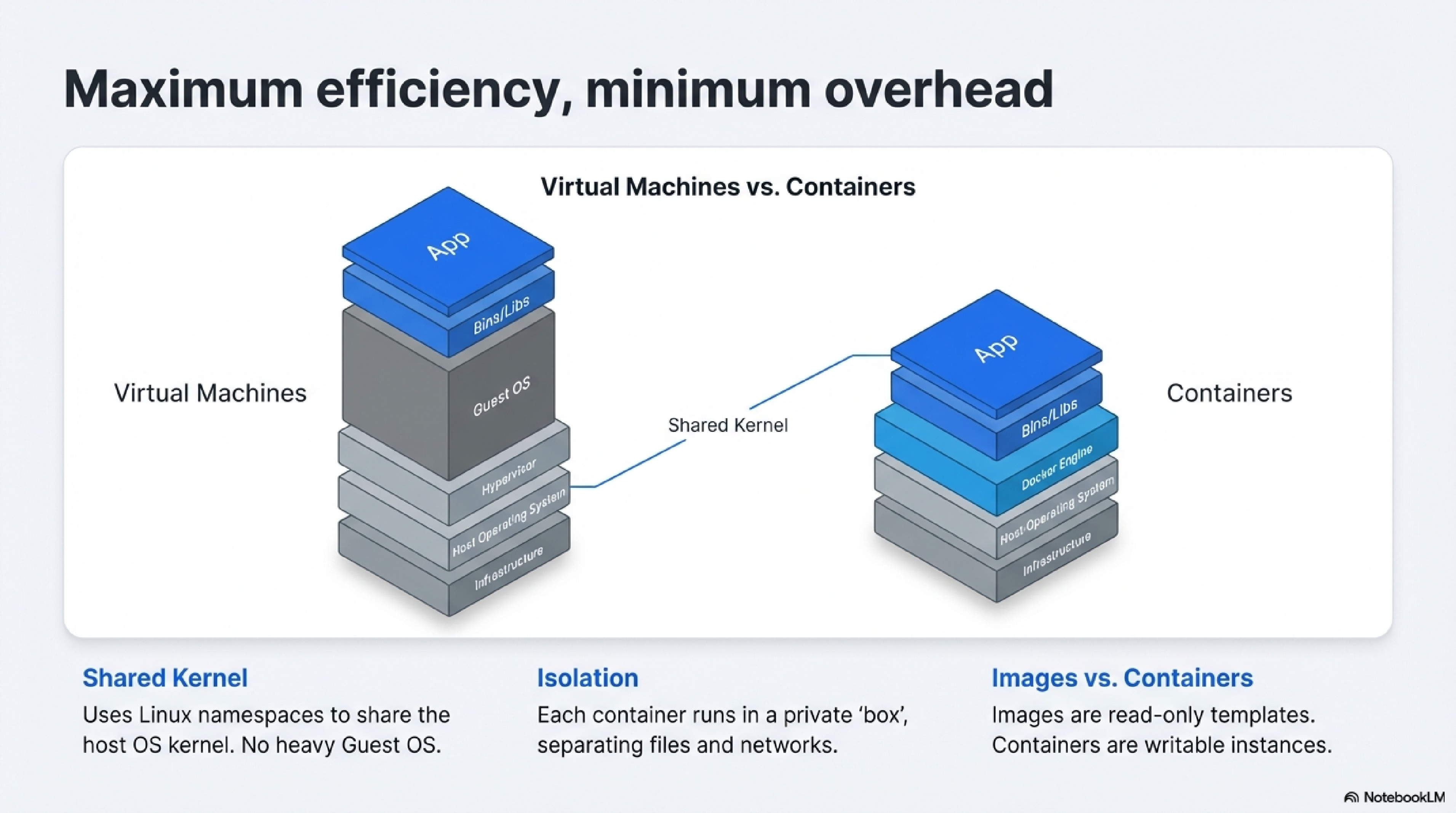
Containers work by using Linux kernel features like namespaces and cgroups to isolate processes, filesystems, networks, and resources from the host.1820
- Each container runs a single process or app in its own isolated “box,” but multiple containers share the host kernel for low overhead (unlike VMs).1721
- Images are read-only templates (layers of filesystems); containers are writable instances of those images.18
- They start in seconds and ensure apps run identically across development, testing, and production.2016
Containers lack native GUI support, as they focus on headless services rather than desktop apps with graphical interfaces.18
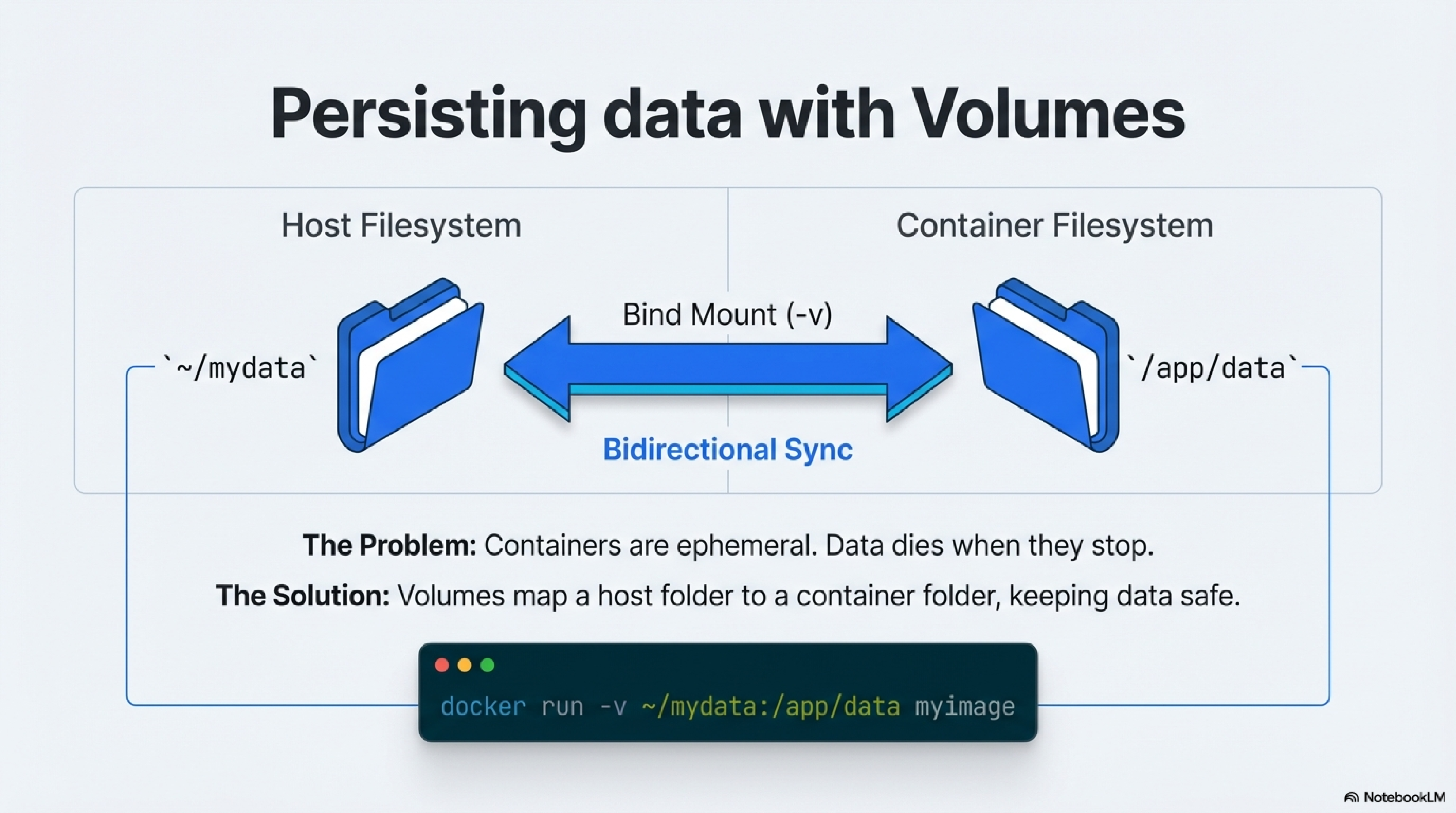
Containers access host data through volumes or bind mounts, which map host directories to paths inside the container.2223
- Use
-v /host/path:/container/pathindocker runto share files bidirectionally; changes on either side sync immediately.2322 - This lets containerized apps read, write, or manipulate host data files like any local program—for example, mounting a data folder for a database container.23
- Volumes persist data beyond container lifecycles, preventing loss when containers stop or delete.22
Example: docker run -v ~/mydata:/app/data myimage lets the app inside treat /app/data as local storage.
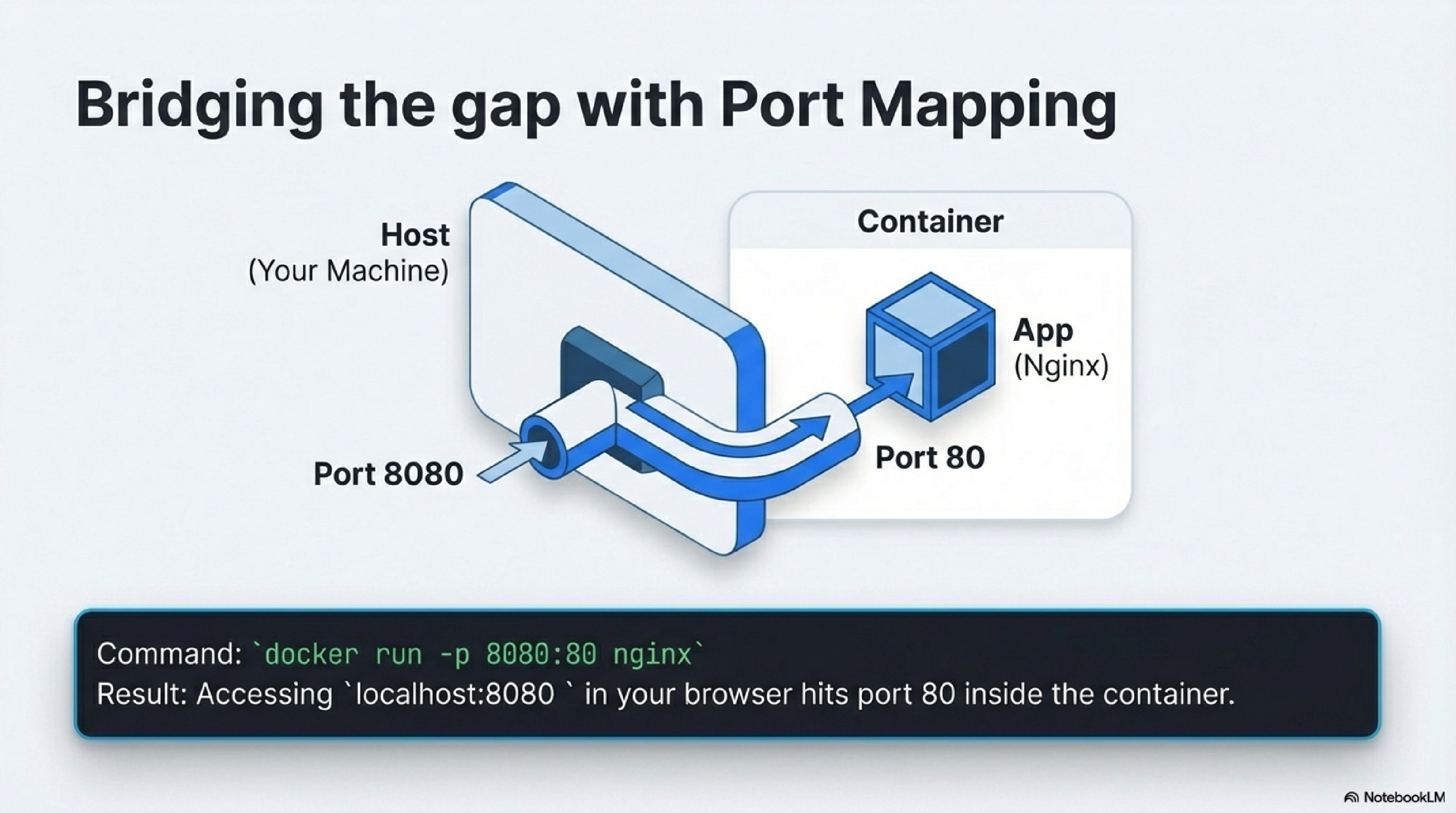
A server is software that listens for incoming connections on a port (a numbered endpoint, like 80 for HTTP or 5432 for PostgreSQL).1924
- Containers have private networks by default; port mapping (
-p host_port:container_port) forwards host traffic to the container via NAT.2519 - Example:
-p 8080:80maps your machine’s port 8080 to the container’s 80, solocalhost:8080reaches the app inside.2419 - Containers communicate with the host or each other like remote servers over these ports.26
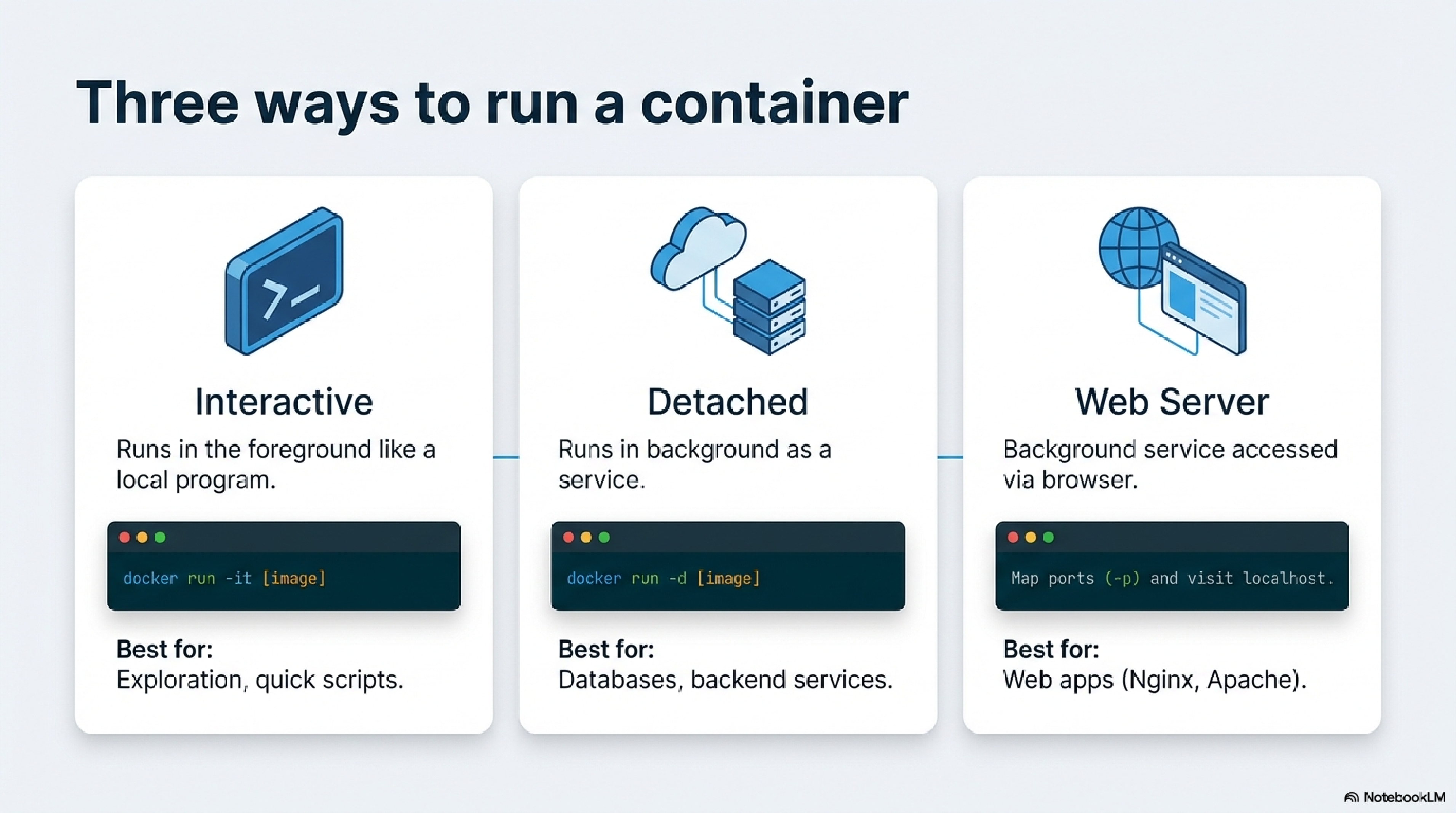
- Foreground CLI mode: Run interactively like a local program (e.g.,
docker run -it -v /host/data:/data mydb psql). Access via terminal, manipulating host files directly.23 - Remote server connection: Run detached (
-d), connect via CLI tools (e.g.,docker exec -it container psql)—behaves like SSH to a remote service.27 - Background web server: Map ports and access via browser (e.g.,
docker run -d -p 8080:80 nginx). Users hitlocalhost:8080to interact with the web app.1924
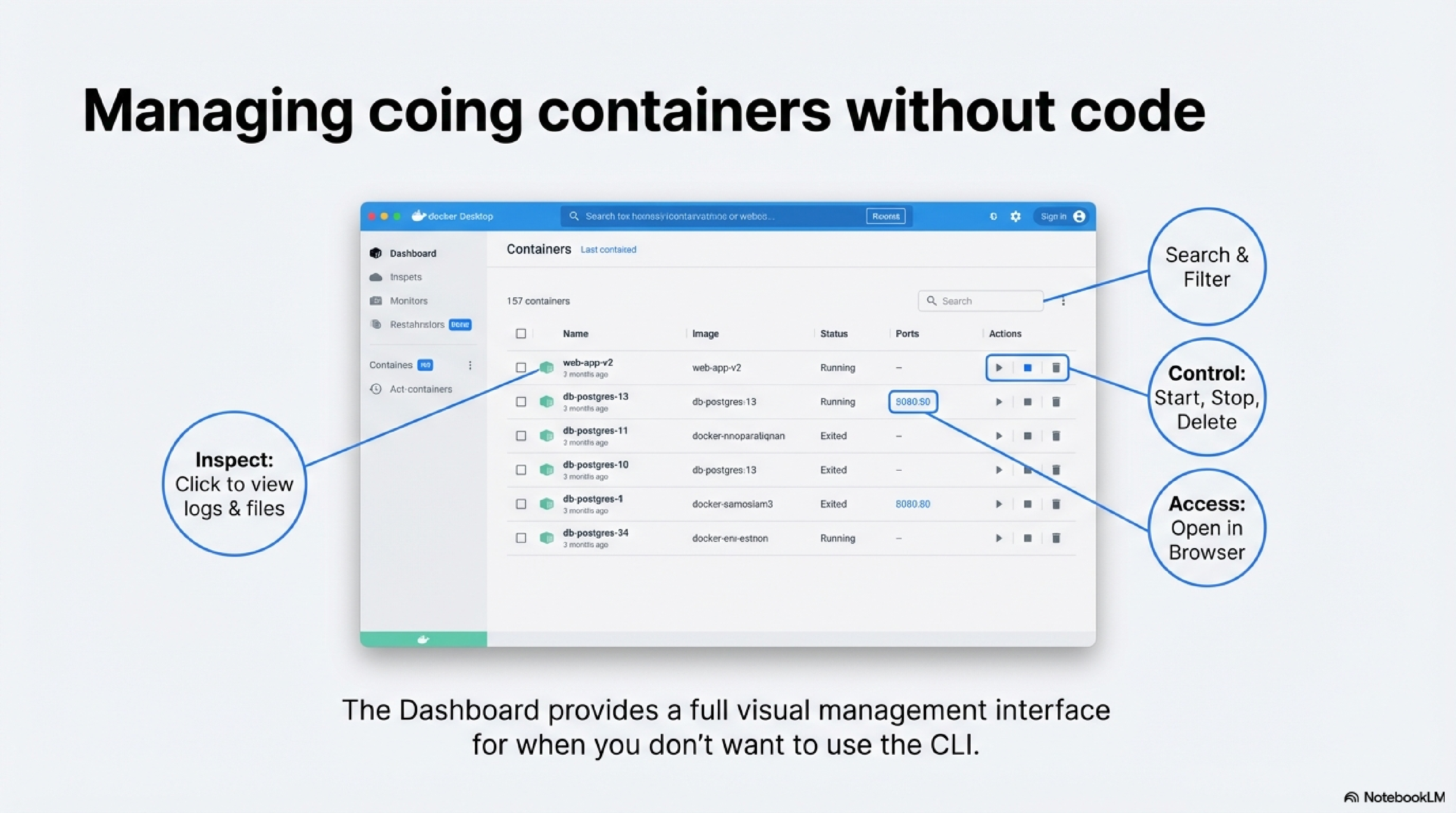
Docker Desktop’s dashboard offers a visual interface to monitor and control all containers without CLI commands.2827
| Action | How to Do It in Dashboard | What It Shows/Does |
|---|---|---|
| View list | Containers tab lists running/stopped ones; search by name. | Status, CPU/memory usage, uptime.27 |
| Start/Stop/Restart | Select container → buttons for play/pause/stop/restart. | Real-time stats and quick actions.27 |
| Inspect details | Click container → tabs for Logs, Inspect, Bind mounts, Stats, Files. | Resource graphs, volumes, env vars, exec console.27 |
| Open ports/apps | Click “Open in Browser” for mapped ports or “Open in VS Code.” | Direct browser access; editor integration.27 |
| Delete/Copy command | Delete button or copy docker run snippet for reuse. | Cleanup and scripting aid.27 |
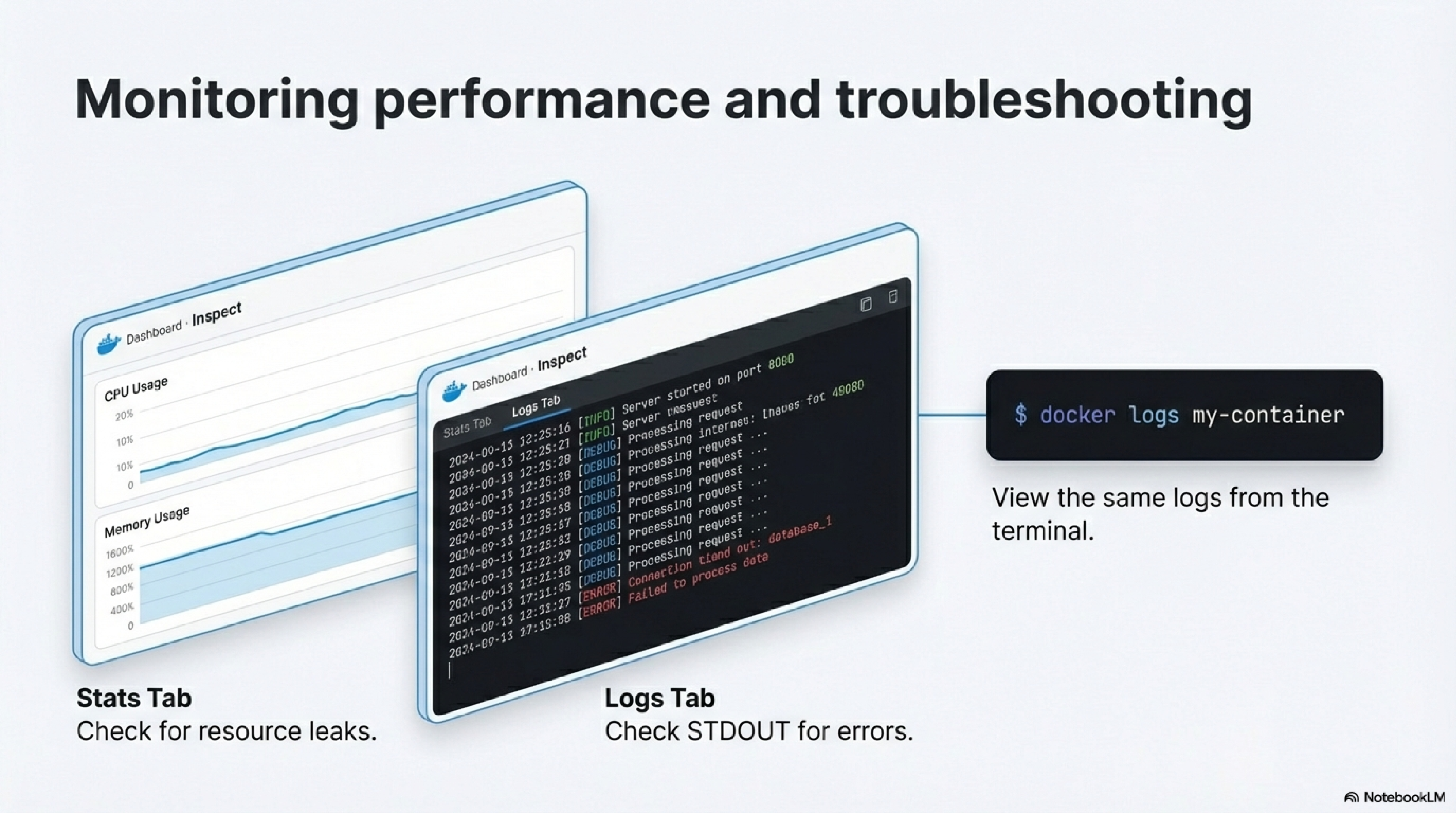
Use the Stats tab for live CPU/memory/network graphs and Logs for troubleshooting output.2827
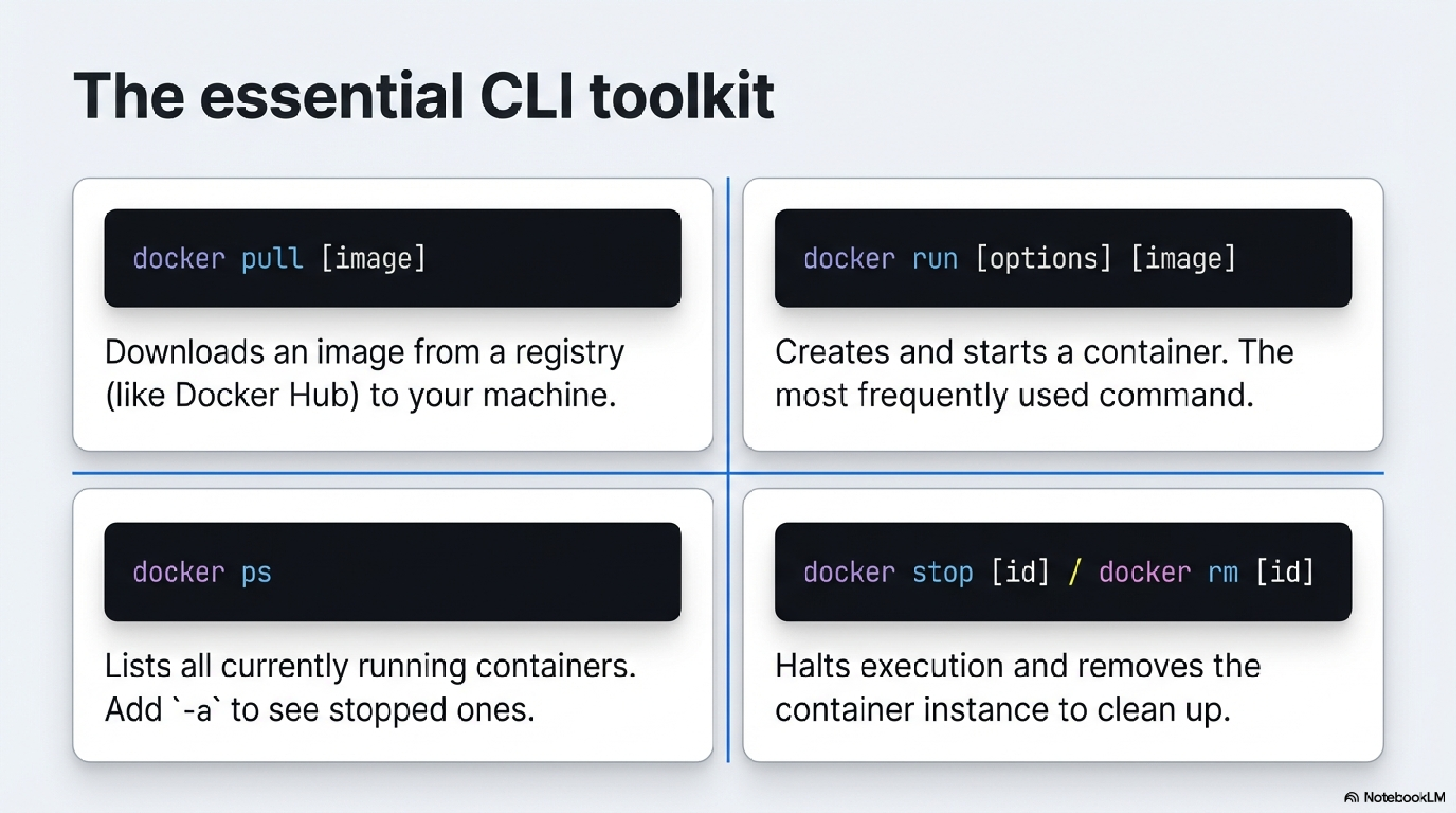
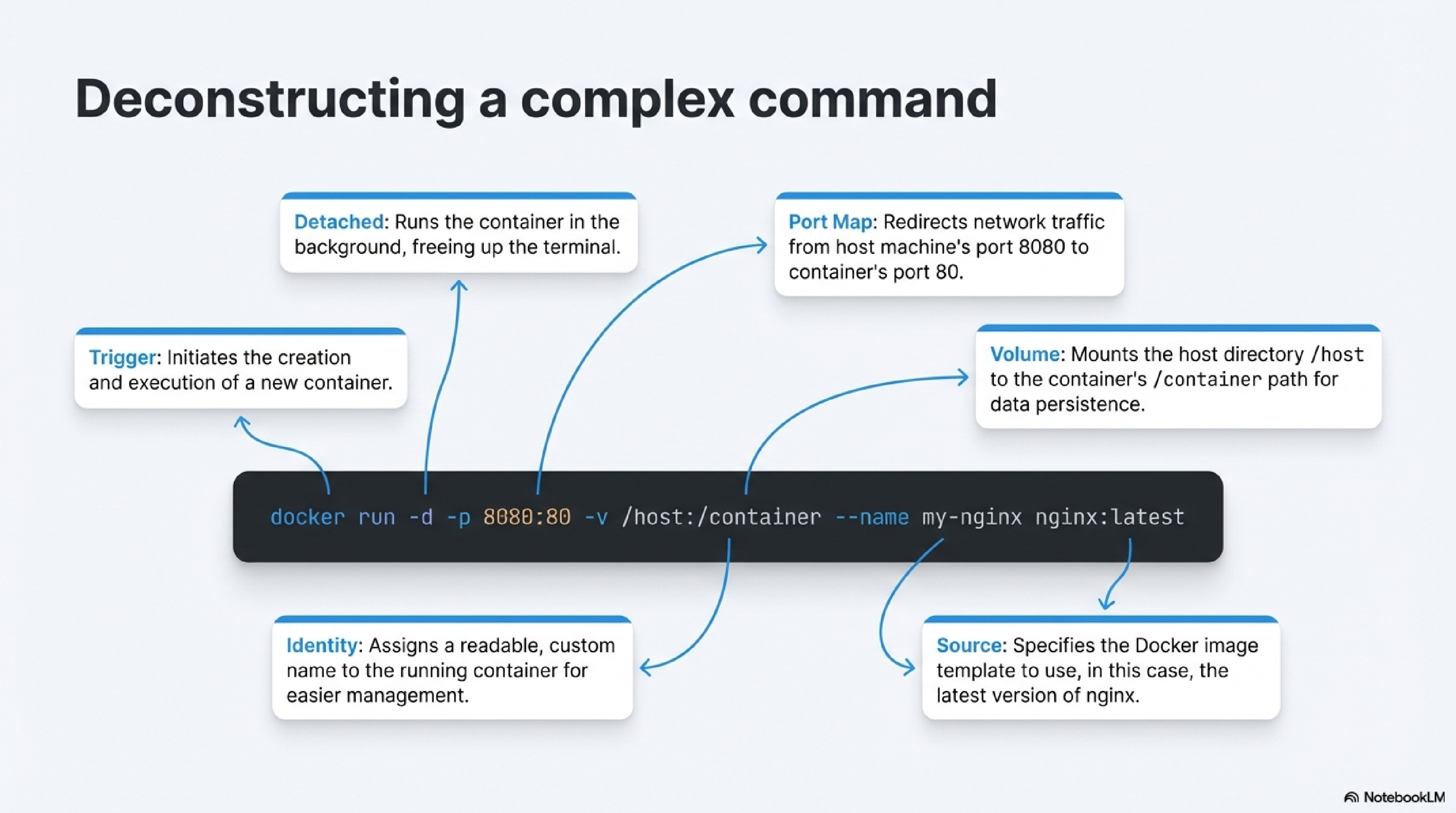
Here’s a simple example that does both port mapping and a volume mount:
docker run -d \
  -p 8080:80 \
  -v /path/on/host:/usr/share/nginx/html \
  --name my-nginx \
  nginx:latest
-druns the container in the background (detached).-p 8080:80maps port 8080 on your host to port 80 inside the container.-v /path/on/host:/usr/share/nginx/htmlmounts a host directory into the container.--name my-nginxgives the container a readable name.nginx:latestis the image being run.
References
https://docs.docker.com/desktop/setup/install/mac-install/ ↩︎ ↩︎ ↩︎ ↩︎ ↩︎ ↩︎ ↩︎ ↩︎ ↩︎ ↩︎ ↩︎ ↩︎ ↩︎
https://docs.docker.com/desktop/setup/install/windows-install/ ↩︎ ↩︎ ↩︎ ↩︎ ↩︎ ↩︎ ↩︎ ↩︎ ↩︎ ↩︎ ↩︎ ↩︎ ↩︎ ↩︎ ↩︎
https://www.simplilearn.com/tutorials/docker-tutorial/install-docker-on-windows ↩︎ ↩︎ ↩︎ ↩︎ ↩︎ ↩︎ ↩︎ ↩︎ ↩︎ ↩︎ ↩︎
https://sites.northwestern.edu/spsit/instructions/minimum-system-requirements-for-docker/ ↩︎ ↩︎ ↩︎ ↩︎
https://dev.to/meghasharmaaaa/install-docker-desktop-on-mac-465d ↩︎ ↩︎ ↩︎ ↩︎ ↩︎ ↩︎ ↩︎ ↩︎ ↩︎
https://docs.docker.com/get-started/introduction/get-docker-desktop/ ↩︎ ↩︎ ↩︎
https://docs.demonwarriortech.com/Documented Tutorials/Docker/Docker_Desktop_Install_on_Windows/ ↩︎ ↩︎ ↩︎ ↩︎ ↩︎
https://dev.to/meghasharmaaaa/install-docker-desktop-on-windows-31ni ↩︎
https://github.com/WCSCourses/index/blob/main/Docker_guide.md ↩︎
https://forums.docker.com/t/good-requirements-for-docker-desktop-on-macosventura/134101 ↩︎
https://www.ibm.com/docs/en/openpages/9.0.0?topic=docker-installing ↩︎
https://wiki.mdriven.net/Documentation:Deployment:_Two_Ways_To_Install_Docker_Desktop_on_MacOS_Intel ↩︎
https://docs.aws.amazon.com/serverless-application-model/latest/developerguide/install-docker.html ↩︎
https://oneuptime.com/blog/post/2025-12-08-how-docker-actually-works/view ↩︎ ↩︎ ↩︎ ↩︎
https://docs.docker.com/engine/network/port-publishing/ ↩︎ ↩︎ ↩︎ ↩︎ ↩︎
https://www.freecodecamp.org/news/how-docker-containers-work/ ↩︎ ↩︎
https://www.reddit.com/r/docker/comments/keq9el/please_someone_explain_docker_to_me_like_i_am_an/ ↩︎
https://stackoverflow.com/questions/40905761/how-do-i-mount-a-host-directory-as-a-volume-in-docker-compose ↩︎ ↩︎ ↩︎
https://www.digitalocean.com/community/tutorials/how-to-share-data-between-the-docker-container-and-the-host ↩︎ ↩︎ ↩︎ ↩︎
https://iamachs.com/blog/docker/part-4-networking-fundamentals-for-containers/ ↩︎ ↩︎ ↩︎
https://www.aquasec.com/cloud-native-academy/docker-container/docker-networking/ ↩︎
https://dev.to/vinothmohan/docker-an-overview-at-high-level-21jk ↩︎
https://docs.docker.com/desktop/use-desktop/container/ ↩︎ ↩︎ ↩︎ ↩︎ ↩︎ ↩︎ ↩︎ ↩︎
https://grafana.com/blog/easily-monitor-docker-desktop-containers-with-grafana-cloud/ ↩︎ ↩︎
https://docs.docker.com/reference/cli/docker/container/run/ ↩︎
https://stackoverflow.com/questions/19335444/how-do-i-assign-a-port-mapping-to-an-existing-docker-container ↩︎
https://www.baeldung.com/ops/assign-port-docker-container ↩︎